REMOTE REVIEW INFORMATION

To enhance your viewing experience, I recommend utilizing the latest Apple iOS devices, such as the iPad Pro, MacBook Pro with Retina Display, or Studio Display XDR. These screens offer exceptional accuracy, but minor adjustments can further optimize your viewing experience. For MacBook users, the Google Chrome browser provides the most visually appealing image.

For FRAME.IO or Resolve Remote Monitor reviews on an iPad Pro:

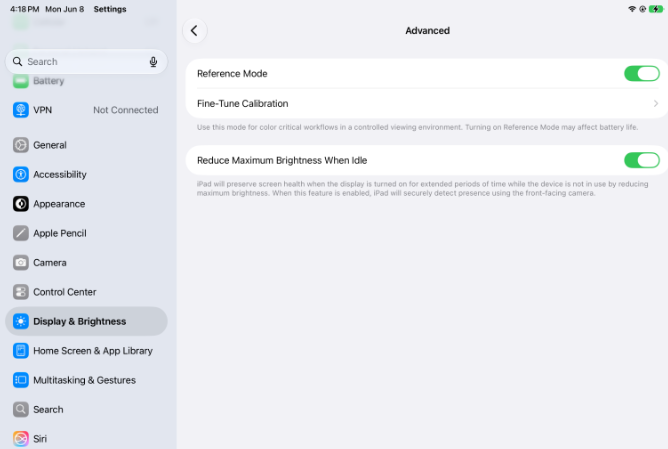
Please ensure that the iPad Pro is set to Reference Mode. To activate this mode, navigate to the settings/display menu, scroll to the bottom, and select Advanced. Toggle on Reference Mode.

**The latest frame.io app must be used for the iPad Pro.

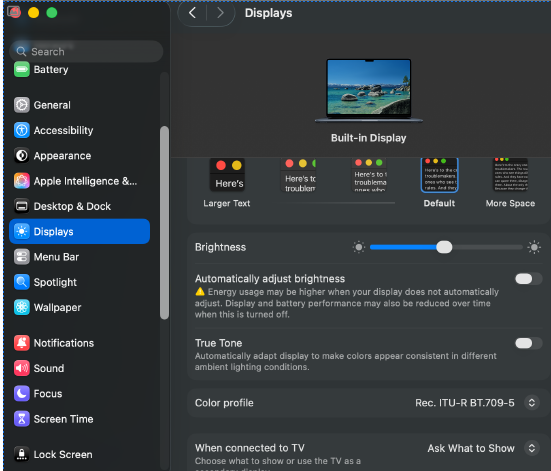
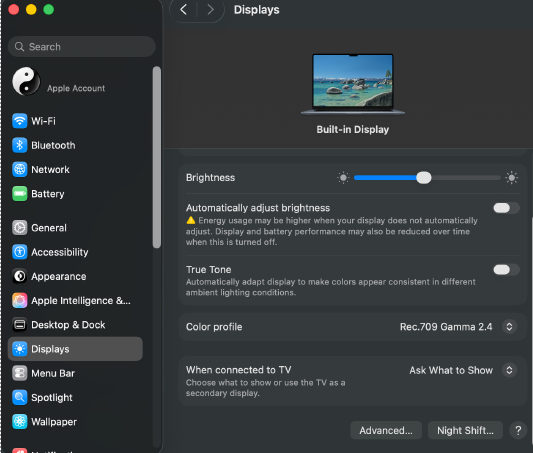
For frame.io on an MacBook Air or Pro with Retina Display please use these display settings and the Google Chrome Browser:

For Resolve Remote Monitor on an MacBook Air or Pro without Retina Display please use these display settings:

For older iPad Pro Gen 3–4 SDR & HDR:

Open the Settings app, and go to the Display & Brightness tab.

– Dark appearance should be turned ON

– Automatic Appearance should be turned OFF

– True Tone should be turned OFF

– Night Shift should be turned OFF

Set the Brightness slider to approximately 50% for SDR & 80% for HDR


For iPad Pro Gen 5 and newer SDR & HDR:

Open the Settings app, and go to the Display & Brightness tab, Advance

– Reference Mode should be turned ON


The speed of your internet connection directly impacts the quality of streaming videos. If other devices in your home are simultaneously streaming video, it can slow down the connection and potentially degrade the quality. Additionally, please ensure that any unnecessary programs or tabs are closed to optimize your internet usage.

Viewing Environment: Please ensure that the room you are in, is dimly lit, similar to a color correction suite. If reviewing multiple times, please maintain the same environment and lighting conditions as the previous sessions.